
Stop Chrome from asking for a PIN when autocompleting passwords
What's Going On
Google Chrome on Windows recently started making you enter a PIN every time you need it to remember your password.
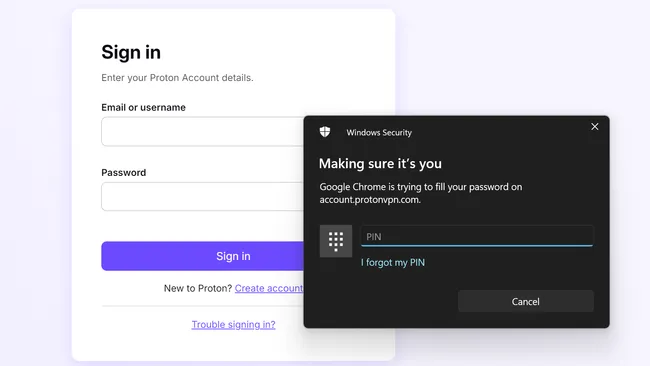
A recent version of Google Chrome (Oct 2025) for Windows seems to have added an extra — and annoying — new security feature that's enabled by default. Where the old Chrome would just remember and fill in your usernames and passwords, the new one asks you for your Windows PIN — or, if you have Windows Hello setup, a facial / fingerprint login — every single time you want it to enter a stored password.
This prevents someone who just walks over to your PC from logging in as you. However, if your computer is physically secure, it's another step you have to take possibly dozens of times per day.
Fortunately, you can change a setting in Chrome for Windows that makes it autocomplete your passwords without asking for a PIN or biometric login. Just follow these simple steps.
How to stop Chrome from asking for a login when auto-completing passwords
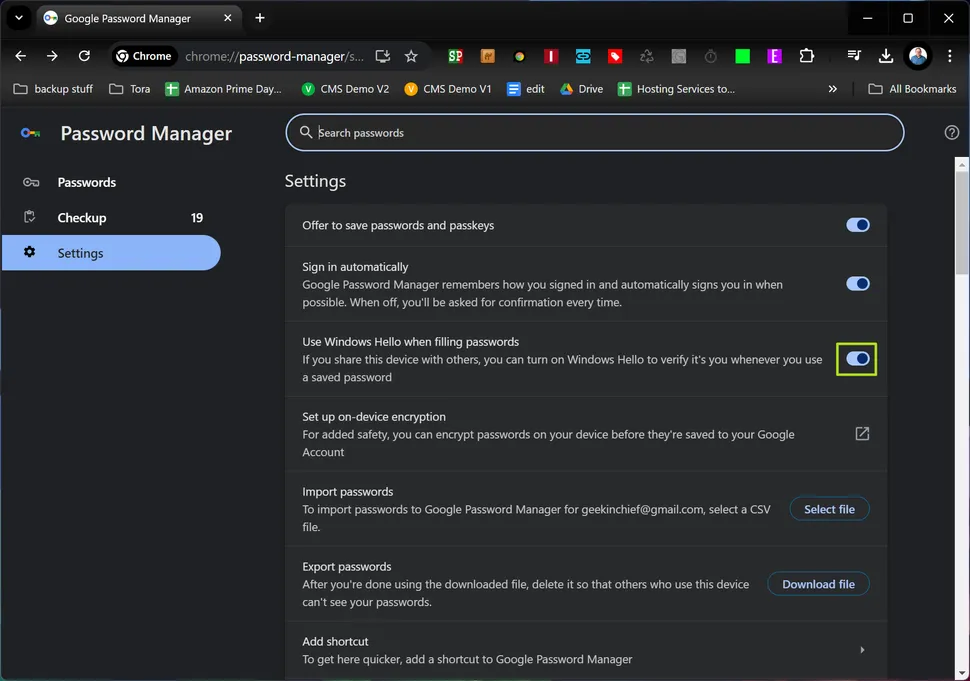
chrome://password-manager/settings
2. Toggle "Use Windows Hello when filling passwords" to off.
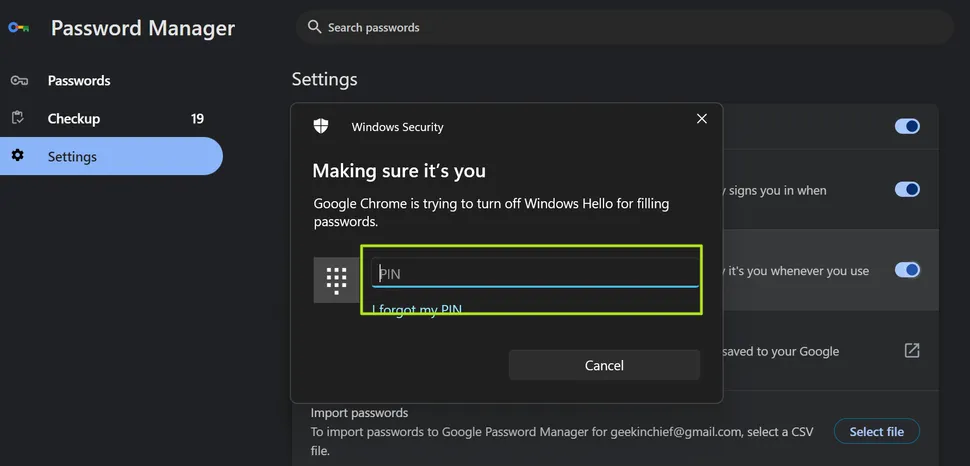
3. Enter your PIN or other credentials when prompted.
No comments to display
No comments to display